Steps to add the Matrix Item to a Transaction at the POS
If a Matrix item is selected then on clicking the OK button of the Product Search Screen the following screen would be displayed.
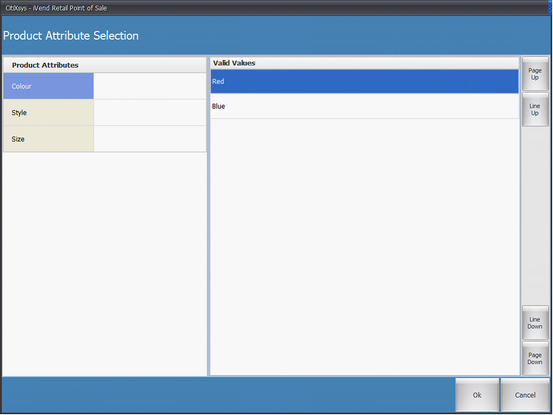
On this screen all the attributes defined for the product are listed as the search criteria. Clicking on the search criteria would open the permissible values of the attribute. These permissible values would be those values which were selected as product attributes values while creation of the product.
This screen would be multiple selections enabled so the user can select more than one values for the selected attributes. For e.g. user can select red and blue values as the search criteria for the color attribute.
After selecting the search criteria for all the attributes the user can press on OK button to see the list of the filtered products as shown in the following figure.
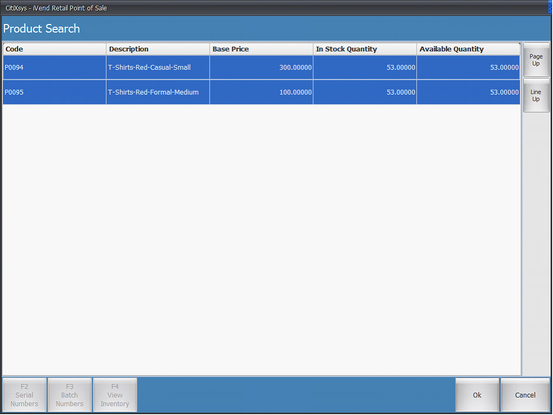
All the result set of the above filter criterion used for the attributes will be by default selected. The user would be able to select the multiple products from this screen. All the selected products will be populated to the main transaction screen. If only one product is selected then the button F1: Serial Numbers, F2: Batch Numbers, F3: View Inventory would be enabled.
F1: Serial Numbers: This button would be enabled if the selected item is a serial controlled item. Is Clicking on this would open the form which will display the serial numbers available for this product in the corresponding selling warehouse of the store.
F2: Batch Numbers: This button would be enabled if the selected item is a batch controlled item. Clicking on this would open the form which will display the available batches along with their quantities for this product in the corresponding selling warehouse of the store.
F3: View Inventory: Clicking on this would open the form which will display the available quantities of the selected item in all the warehouses.
If more than one item is selected from the search product screen then the button F1: Serial Numbers, F2: Batch Numbers, F3: View Inventory would be disabled.
|