POS will work in offline mode if it is configured to function even if the connectivity between the terminal POS and the store server is interrupted. Once required settings are done at Management Console, POS needs to be run as an administrator.
Run Offline POS

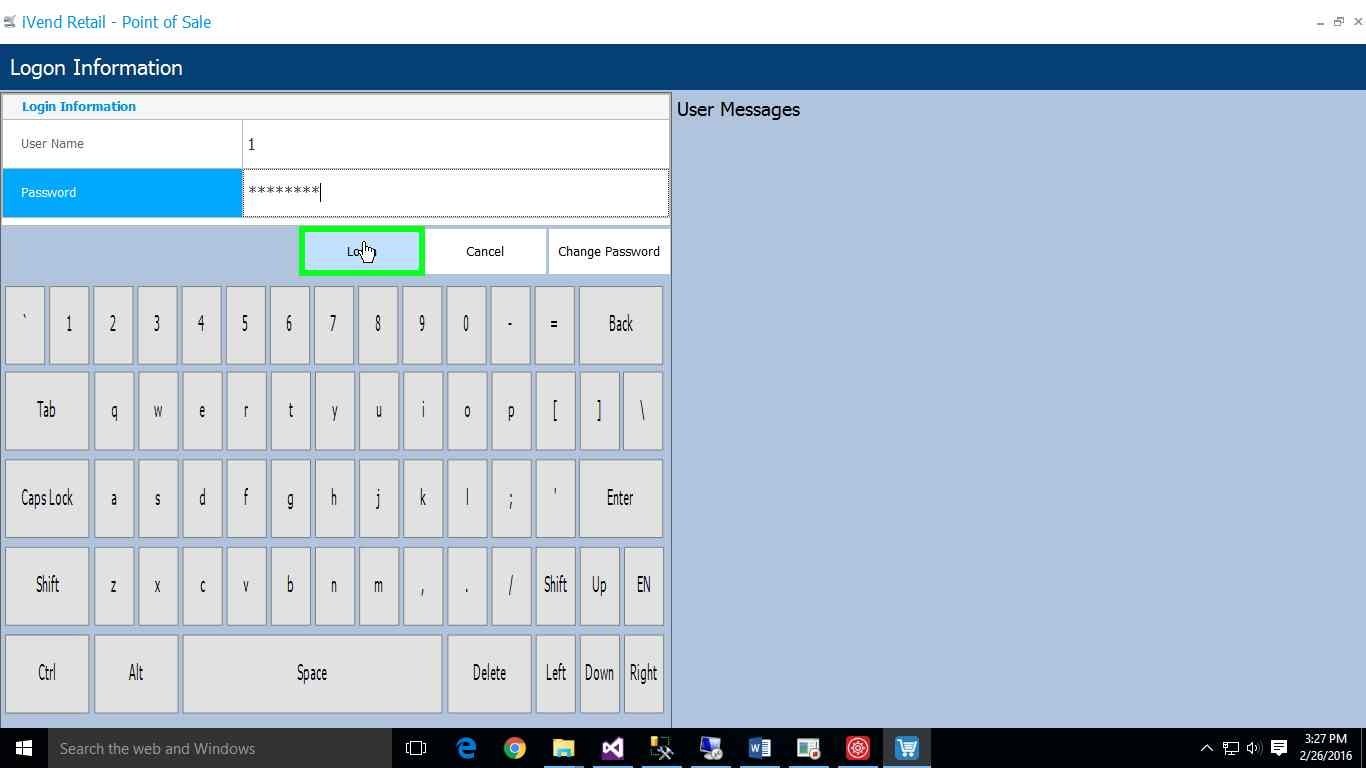
System will ask for credentials to log in.
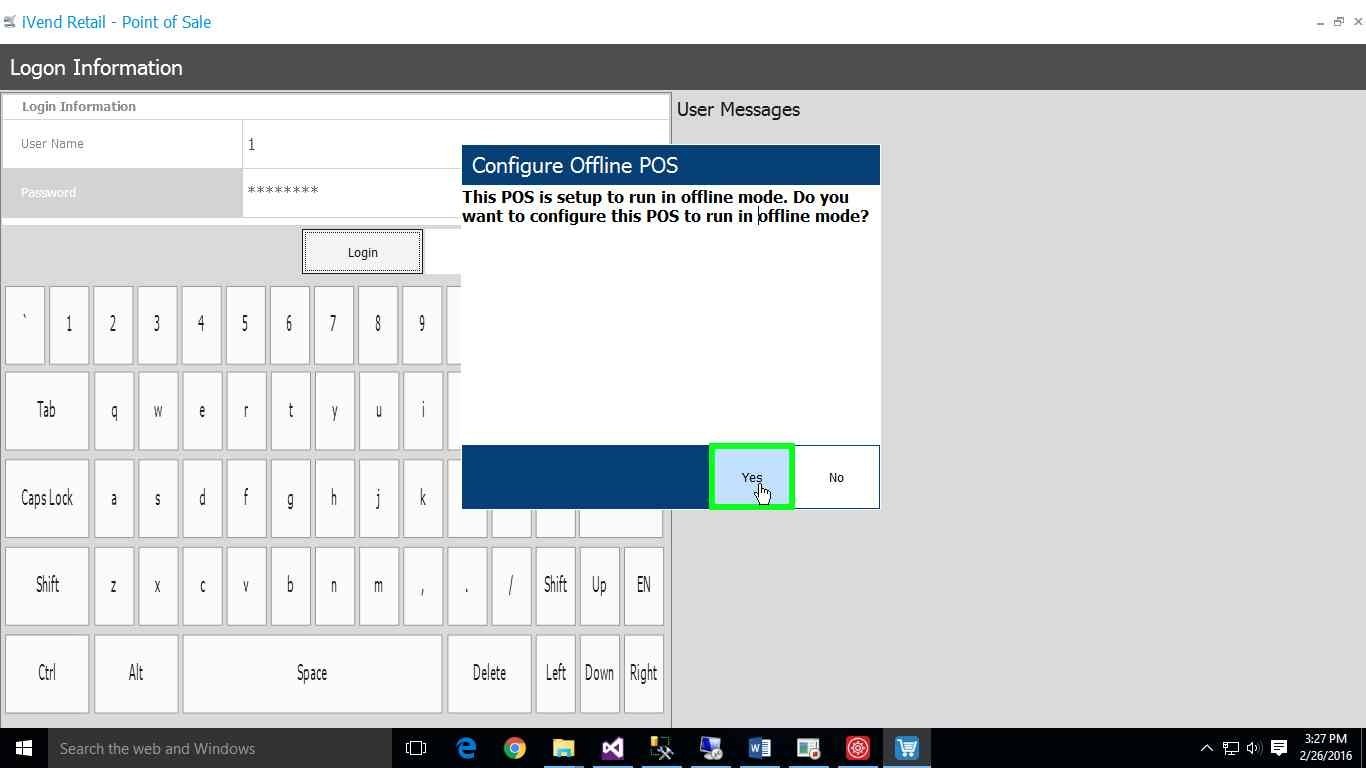
System will next show a pop up window to confirm if user wants to continue to run POS in offline mode.
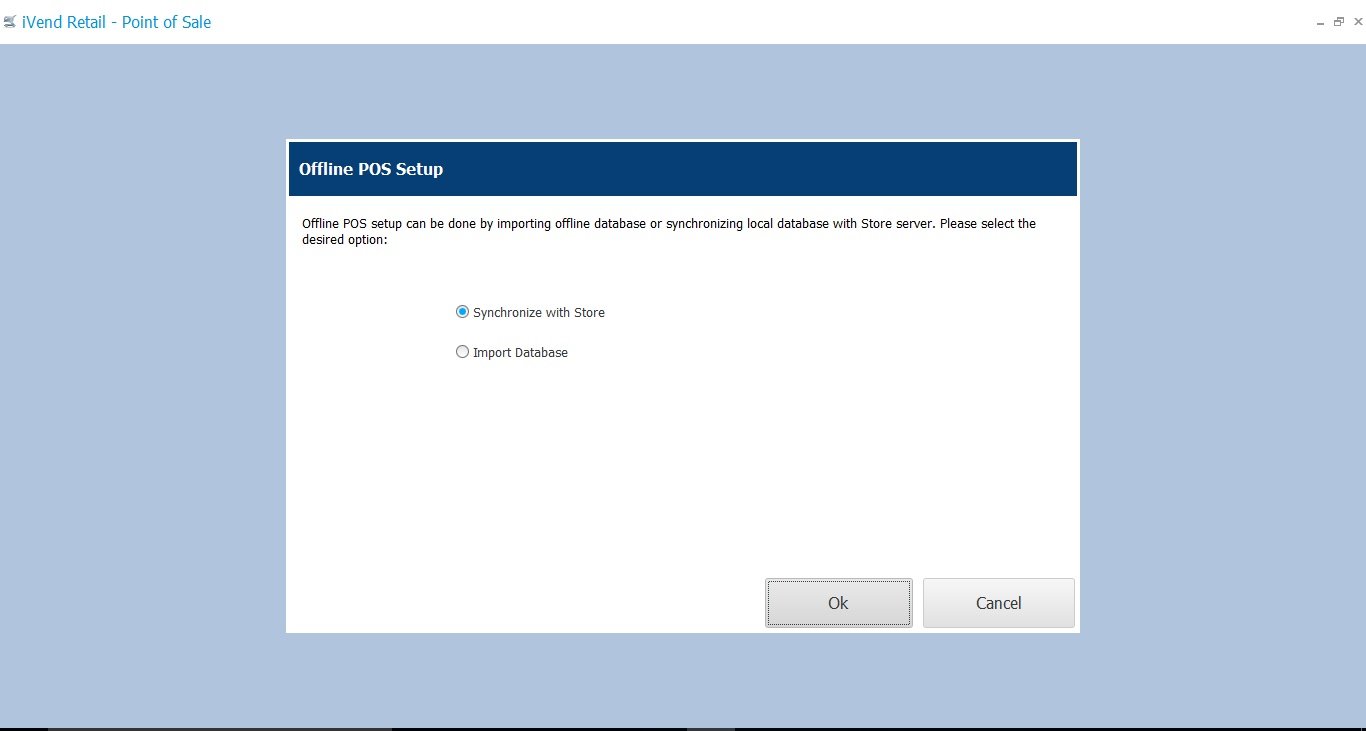
The screen has two options:
•Synchronize with Store: Select this option to synch data directly with store server.
•Import Database: Select this option to import the POS database backup created on management console.
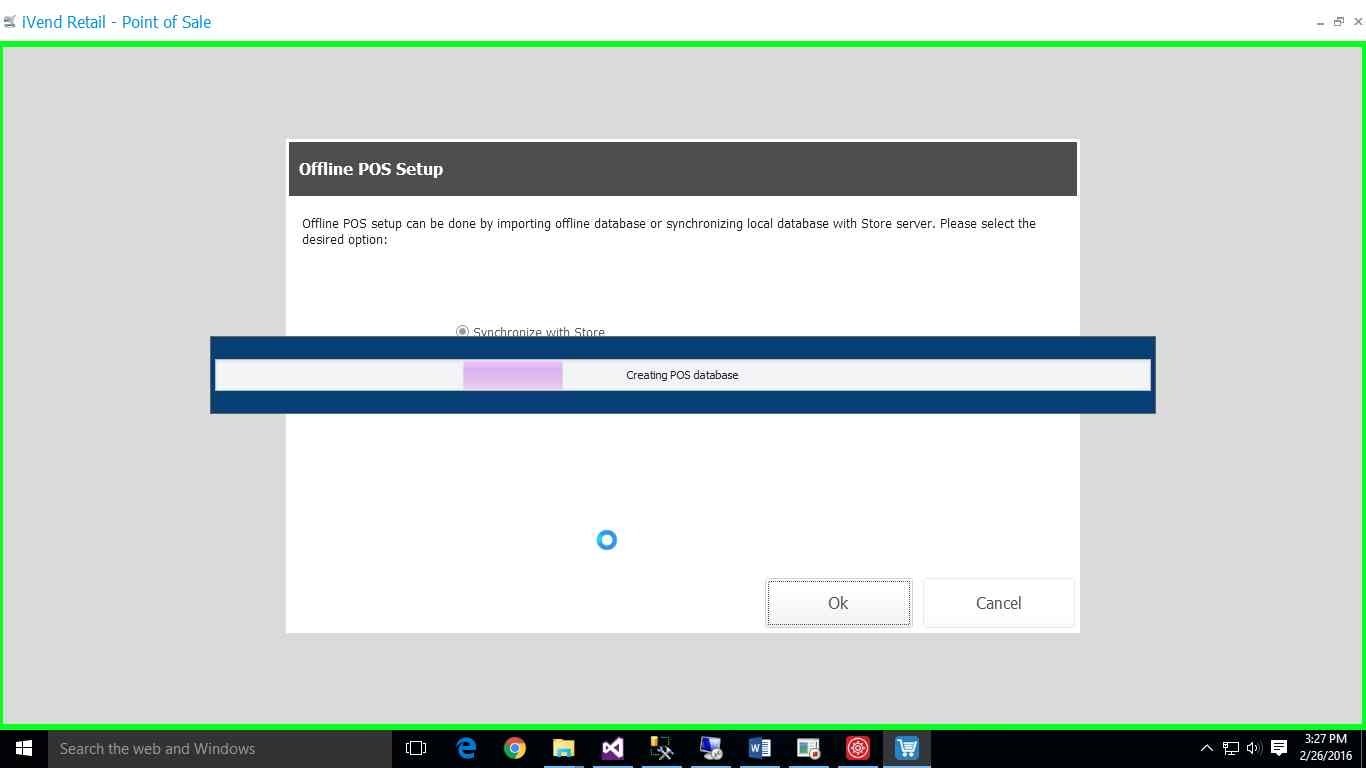
Data will be synched and POS will be required to restart.
Restart the POS and log in. Every time user logs in the offline POS, system will ask for the data synchronization between store and POS.
Note: The header text is changed to show the current mode of POS.
Data Synchronization
While running offline POS, data synchronization between POS and Store will happen periodically or it can be triggered manually.
Synch data manually
To synch data manually at any point of time, go to user menu and click Synchronize Data From Store option.
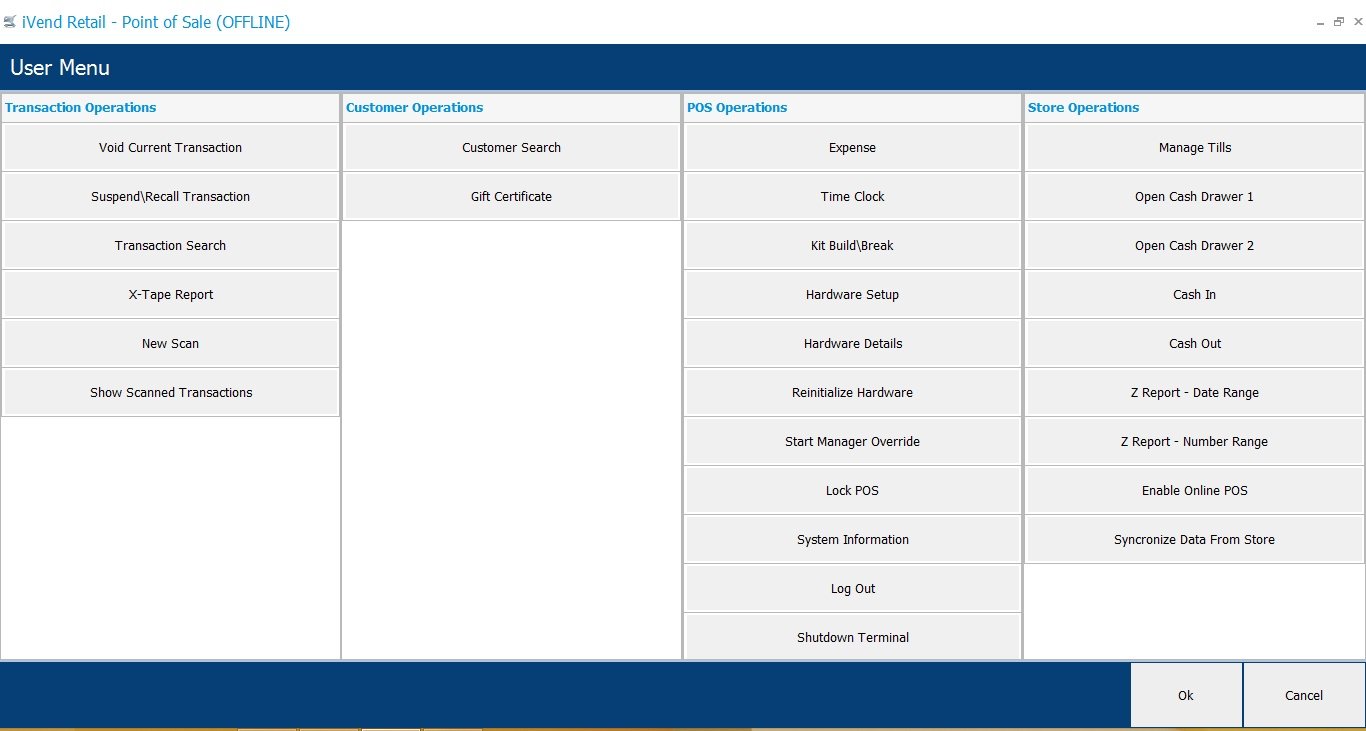
Enable Online POS
To enable online POS, go to user menu and click enable online POS option. System will synch the data with store and then will require to be restarted.
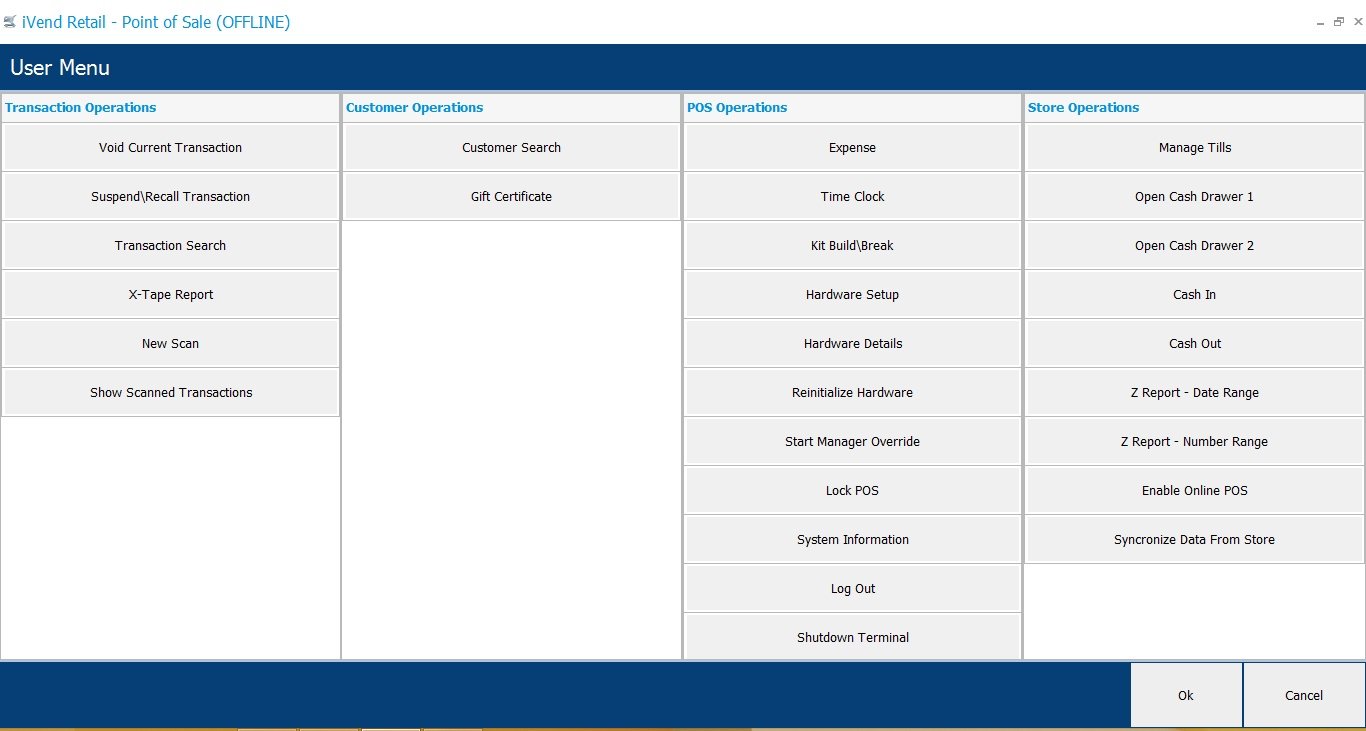
Enabling Cloud POS
Once you have enabled offline store from iVend Management Console, right-click on the iVend Connection Manager and choose the Connection Manager option. This opens the Connection Manager window where you need to select the Cloud (connected) POS checkbox.
Selecting the Cloud (connected) POS checkbox clears all other information under the POS / Management Console Connection Information. Click the Update button to apply change and proceed further to run the wizard for configuring Cloud POS.
|